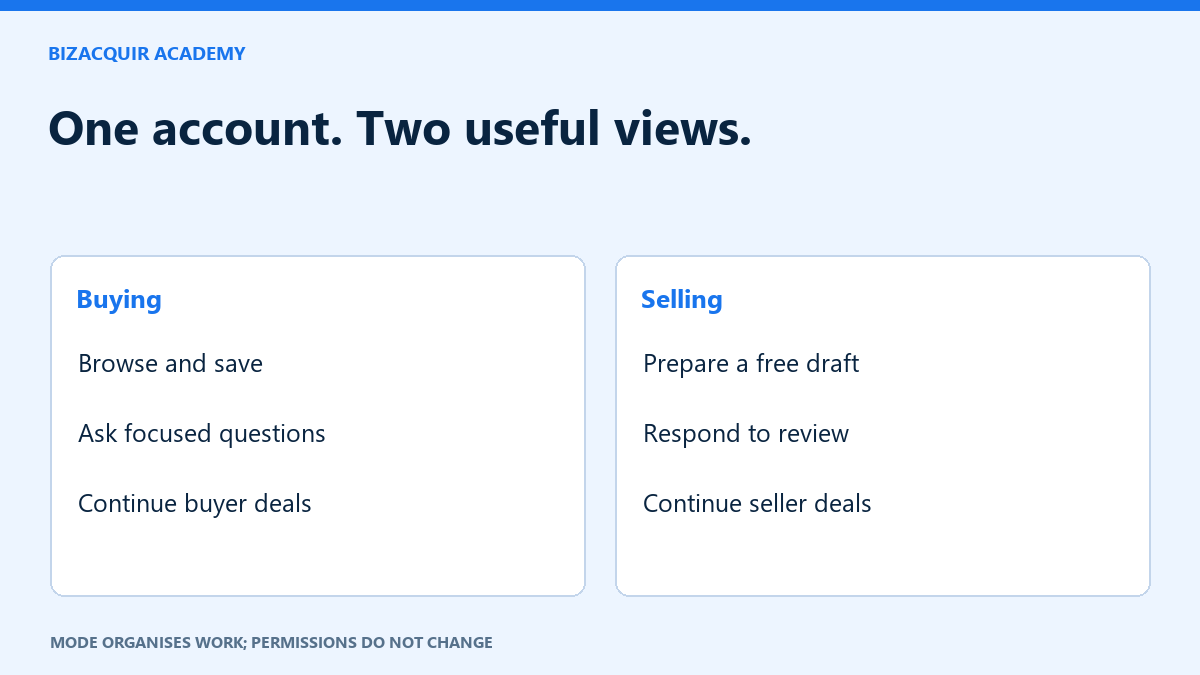
You do not need a separate buyer account and seller account on BizAcquir. The Buying and Selling modes organise your dashboard around the work you want to do. They do not change who owns a listing or who can access a private deal.
Create your account from the right starting point
- Open Sell a Business when you are preparing a listing, or choose Create account from sign-in.
- Choose I want to sell a business when the registration form asks about your intent.
- Complete the account fields and read the applicable terms before agreeing.
- Use the account-confirmation email to complete email verification. Check the address you supplied and your spam folder if it does not arrive; contact support rather than creating repeated accounts.
- Sign in and continue to the intended account or listing page.
If you were already trying to return to a listing or protected action, use that existing journey. Signing in does not itself submit an offer, start a deal or publish a listing.
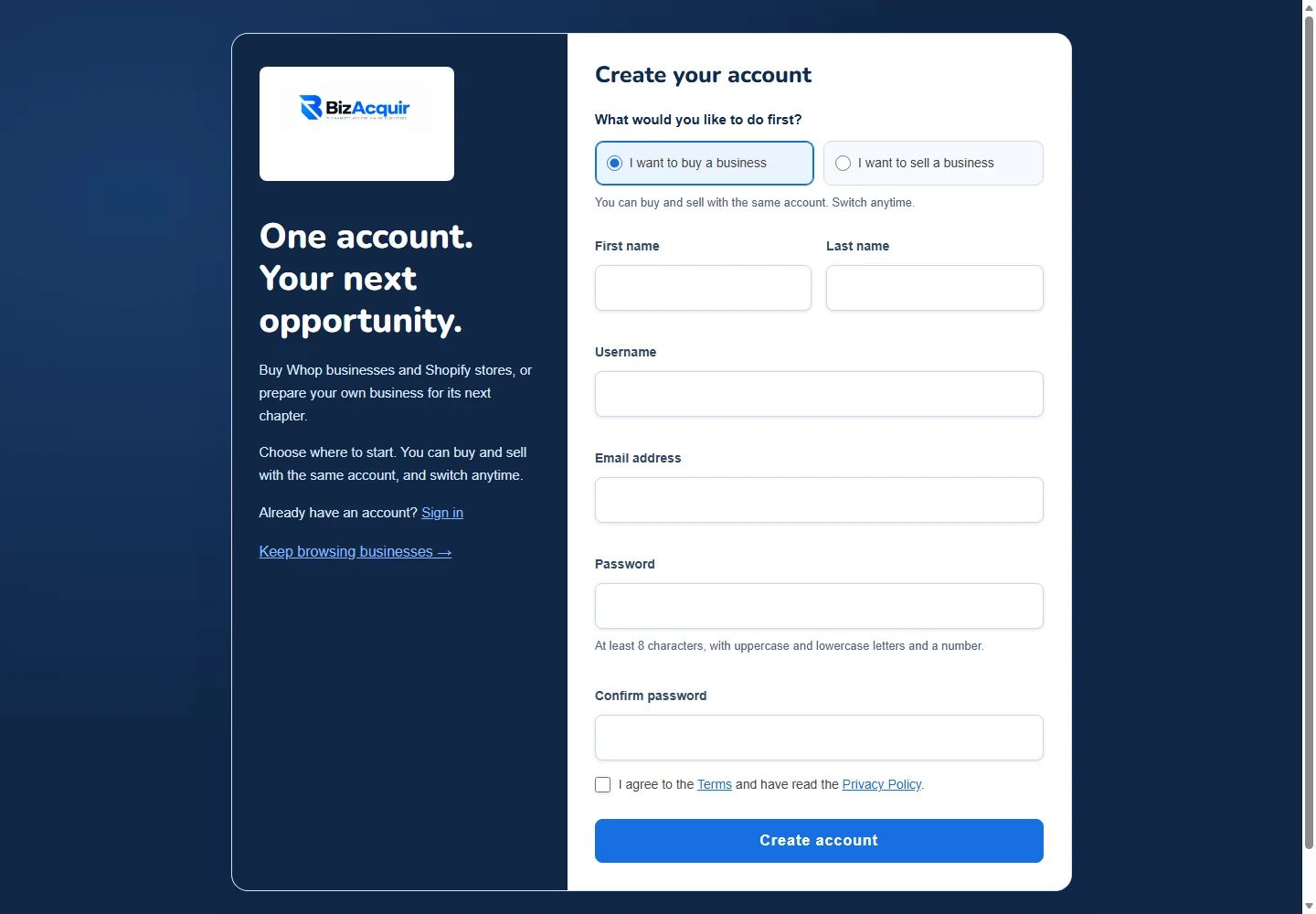
The public registration screen offers buying and selling intent within one account. No account information is entered in this capture. Select the image to open it larger.
Switch to Selling when you need it
The labelled Buying | Selling switch sits prominently in the customer account area. Select Selling to bring listing preparation and selling deals to the foreground. Your preference is remembered, but links to the other side remain available.
Save unfinished form work before switching or leaving a page. If the browser warns about unsaved changes, remain on the page and save your draft. A mode preference is not a backup of text you have not saved.
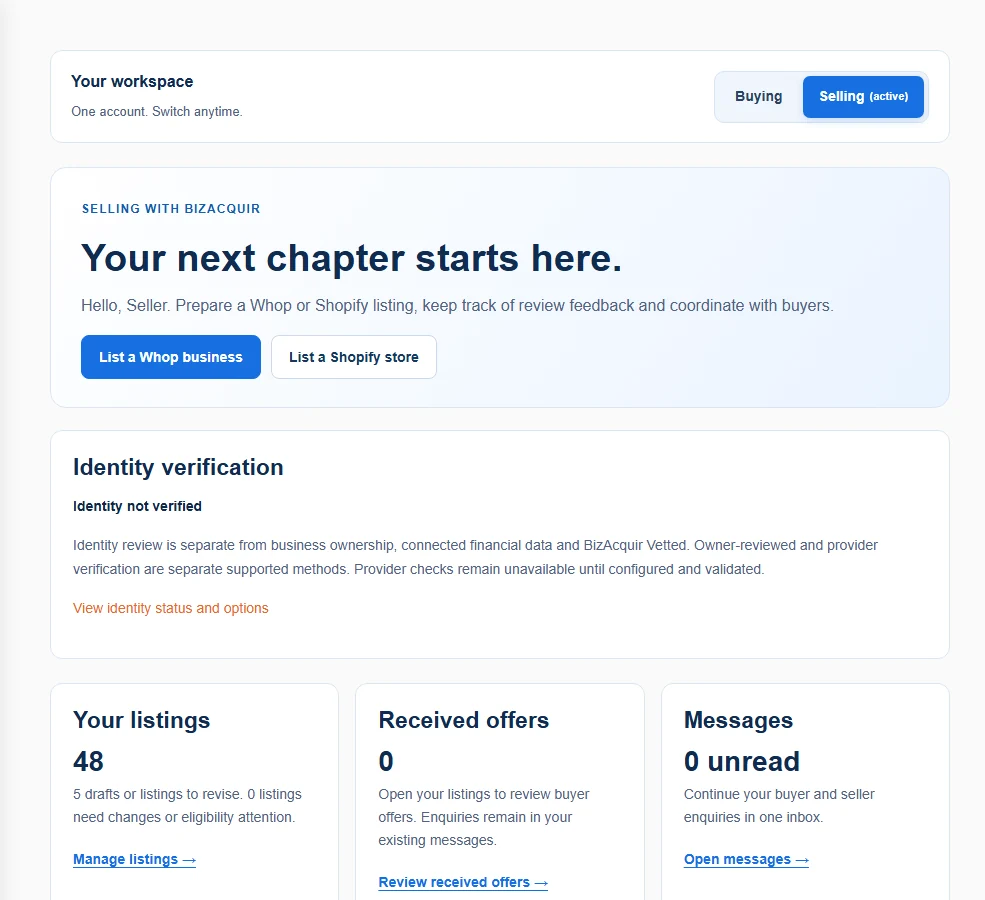
Selling dashboard in an isolated tutorial account. Counts and records are synthetic examples, not live marketplace activity. Select the image to open it larger.
Use the dashboard as a work queue
| Task | Where to go |
|---|---|
| Prepare a business | Create a business listing. |
| Resume or edit | My Business Listings, then the appropriate draft or edit action. |
| Respond to review | Read the listing status and any requested changes. |
| Continue a transaction | Open a deal where your account is the seller. |
| Answer a buyer | Use the existing enquiry, offer or message area linked to your account. |
Use the status shown on the record, not the mode label, to decide what happens next. A saved draft is private; submission and publication are separate steps. A sold or withdrawn business should not be represented as still available.
Keep email confirmation and identity review separate
Email confirmation establishes access to an email address. Identity review is a separate process, and a connected financial source is separate again. Your dashboard shows the current identity state and available action. Follow that action if a later marketplace step requires verification; do not upload identity material into a public description.
BizAcquir Vetted is a listing-review badge, not a reward for opening an account. It does not appear simply because you chose Selling or confirmed your email.
Recover your place safely
Open My Business Listings to find saved work instead of starting another listing for the same business. If a session expires, sign in again and reopen the draft. Use password reset if needed; do not share your password with a prospective buyer or someone claiming to help with verification.
Public browsing remains available without registration. Once you want to save a business, contact a seller or prepare your own listing, use the same account and the relevant dashboard mode.
Read the dashboard as your next-action list
After signing in, check the highlighted mode before looking for your work. Selling brings listing preparation and seller deals forward; Buying brings browsing, saved businesses and buyer deals forward. You can still open an authorised direct link in either mode.
Open My Business Listings before creating another draft. Each saved business has its own status and actions. Use Edit listing to continue writing, Private preview to inspect saved content and Financial connections to review connection status. Opening a preview does not submit or publish anything.
| What you see | Useful next action |
|---|---|
| Draft | Resume the existing record and save missing information. |
| Pending review | Check for review feedback; do not create a duplicate. |
| Changes requested | Address the specific feedback and resubmit when ready. |
| Published | Check the public presentation and current publication and automatic-renewal status. |
Recover without losing the listing context
If a link takes you to sign-in, use the same account and continue to its intended destination. If you arrive at the dashboard instead, open My Business Listings and the saved business. Check that the latest text appears after reload before closing your working copy.
An email confirmation link and a password-reset link serve different purposes. Use the latest relevant message and check the destination before entering credentials. If the page reports an expired or invalid link, use the available recovery route or contact support with the visible error. Never forward a live confirmation/reset link to a buyer. A Google sign-in option, when offered, does not replace a required identity check.
Your next step
Ready to prepare your sale? Sell your Whop business or get a free valuation. Create an account or sign in to view your private estimate.
- Create, Save and Submit a Listing on BizAcquir
- Browse, Save and Enquire About Businesses on BizAcquir
Sources and useful references
Use the dashboard to choose the next task
Start in Selling to create or resume a draft. Buying remains available in the same account when you want to browse or save businesses. Switching the view does not create another account or change what you own. If you returned from a listing or conversation, use that saved destination rather than starting again.
Keep the listing title and platform recognizable before saving. The listing dashboard then gives you a useful way back to the right draft, its connections and any review feedback.