Connect financial data from the saved listing you want buyers to evaluate. Whop connections are available on BizAcquir. Stripe and Shopify appear alongside Whop; use the availability shown on their cards, and save your draft or contact support if your source cannot connect yet.
The listing can be Whop, Shopify or SaaS. Choose the provider account that holds that business’s activity, even when its name differs from the business or its platform. The connection imports financial information; it does not pay for the acquisition or transfer ownership of the business.
1. Save the listing you want to connect
Sign in, choose Selling → My Business Listings and open the existing listing. Choose Financial connections, or open Connect your business data in the listing wizard before entering financial information. Save your latest changes before leaving for provider consent. Start from this same record when you return, rather than creating another draft.
Check the imported-data disclosure: supported imported figures are shown consistently to signed-in buyers and cannot be edited or selectively hidden by the seller. Your expenses and other seller-provided figures remain separate. Read the provider’s own permission screen before approving access.
2. Connect Whop and select the right business
- On the Whop card, confirm that the account you select contains financial data for this listed business and that you will review the provider’s requested access.
- Select Connect Whop. Sign in and review consent on Whop’s own page. Do not give your Whop password to BizAcquir or put it in a message.
- Return to the listing. If only one eligible business is available, it can be selected automatically. If several are available, choose the recognizable business from the selector and confirm that its financial data relates to the listing.
- Check the selected business before continuing. A legal company name may differ from a storefront or community name; the important question is whether these are the correct records for the sale.
- Allow the initial import to finish. A green dot and Connected, together with Account connected. Financial information imported., mean the successful connection can support the submission requirement.
You do not need to type a Whop business ID or arrange a separate approval for each seller. If the wrong business appears, do not confirm it or use its figures. Return to the selection step where offered, or use Get help connecting. Different businesses’ figures must remain separate.
Whop presents the requested permissions during authorization. That access may include broader account capabilities. BizAcquir’s connection feature currently imports data; it does not make payments, move funds or change your business.
3. Understand the return and import states
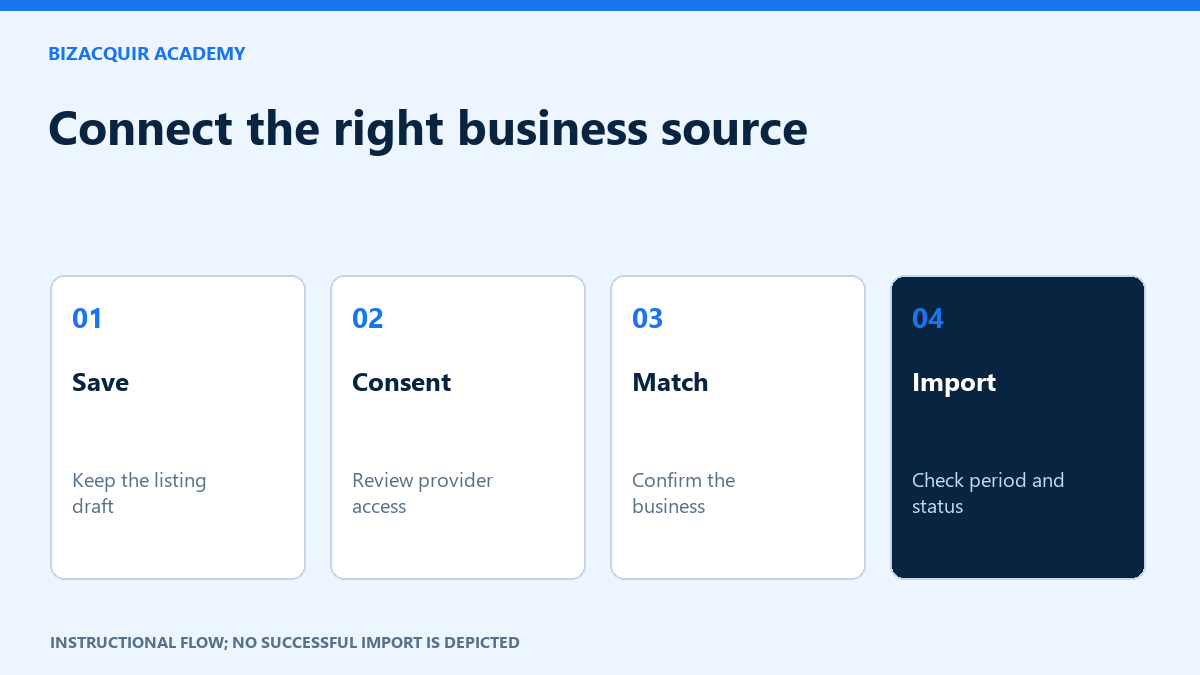
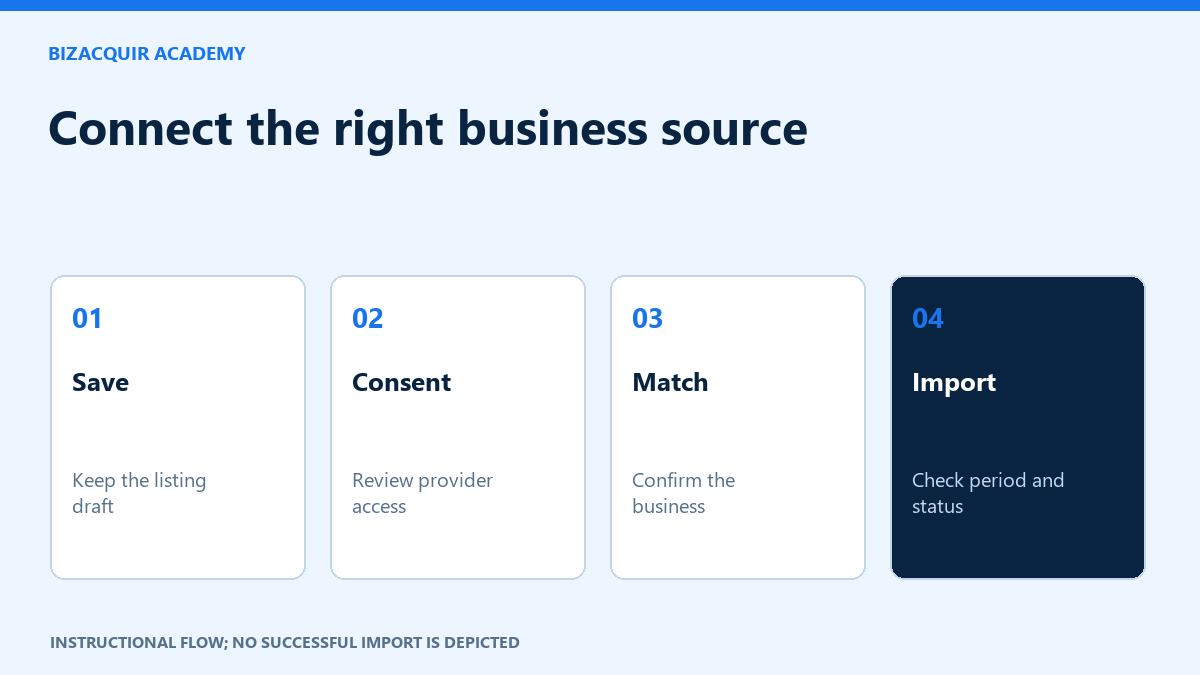
Instructional diagram, not a captured provider success screen. Returning from consent is followed by account confirmation and the initial import.
| What you see | What to do |
|---|---|
| Not connected | Save your draft and start from the relevant provider card. |
| Connecting or business selection | Complete consent and confirm the correct authorized business. |
| Importing | Wait for the status to update. Repeated Connect clicks will not make it faster. |
| Connected | Review the business, figures, dates and currency; continue preparing your listing. |
| Import failed | Read the specific error and use Retry import when offered. Keep the same draft. |
| Needs reconnection | Use the offered authorization action after checking the account and access. |
| Stale or disconnected | Read any retained figures as dated history; check the visible recovery action. |
A successful authorization without a successful initial import does not satisfy first submission. A genuine zero-revenue period is different from an unavailable metric or an import error. A business with past revenue may qualify even if current revenue is zero, provided the relevant history is supported.
4. Connect Stripe or Shopify when available
Stripe: start from Connect Stripe and use an account whose payments relate to this business. Review consent, return to the listing, confirm the selected account and wait for its import. A Stripe account does not automatically contain Shopify Payments activity. Read the payment and refund definitions before comparing it with another source.
Shopify: start from Connect Shopify. If requested, enter the store’s permanent myshopify.com domain rather than only a custom storefront address. Continue with a Shopify account authorized to install the app, review its access and return to the listing. Confirm the store and the available order-history period. Installing a data app does not transfer store ownership.
If the card says the provider is unavailable, save your draft and use its help link. Do not enter another business’s account merely to get past submission. You can keep preparing the listing while the relevant connection becomes available.
5. Read Connected Financials
Begin with the provider and currency. Use 1M / 3M / 6M / 12M / All available to select a reporting period; the default is 12 months. Check the exact dates and any limited-history notice. A recently synchronized account can contain older transactions without making them current revenue.
- Gross volume or revenue: read the source’s definition and deductions. It is not profit.
- Refunds and disputes: distinguish amounts, counts, outcomes and the period used.
- Monthly history: compare completed months and recognize an incomplete current month. Missing history is not zero.
- MRR and active members: where available, read the as-of date and definition. These are not amounts to add across months.
- Freshness: open the sync details. Stale and disconnected sources remain visibly identified.
Keep Whop, Stripe and Shopify separate because the same activity can appear in more than one provider. Do not add overlapping sources or currencies. Imported data stays separate from your manual expenses, Asking Price and Buy Now. An identity tick and BizAcquir Vetted are different checks.
Recover without losing your draft
If you cancel or decline consent, return to My Business Listings and reopen the saved draft. If your session expires, sign in and continue from that record. Use a fresh Connect action rather than a copied old authorization link.
If an import fails, use the displayed retry action and retain the existing authorization where the page permits it. Contact support if the same error remains. Send the listing reference, provider and short visible error—not passwords, authorization links or customer records.
Use Request disconnection to ask BizAcquir to stop the connection. You may also revoke access at the provider. Any retained historical figures remain dated and labelled with their connection status. A successful import is one submission requirement; the listing will still identify any missing business information before review.
Your next step
Sources and useful references
After returning, check the business and reporting dates
If several authorized businesses are available, choose the one whose figures relate to your listing and confirm that relationship. A provider or LLC name can legitimately differ from the listing name. Do not select another business merely because it has more attractive figures.
A recent synchronization can contain older revenue. Check both the last-sync information and the actual financial reporting period. If a metric is unavailable, it is not a confirmed zero. Keep overlapping Whop and Stripe records separate rather than adding them as extra revenue.