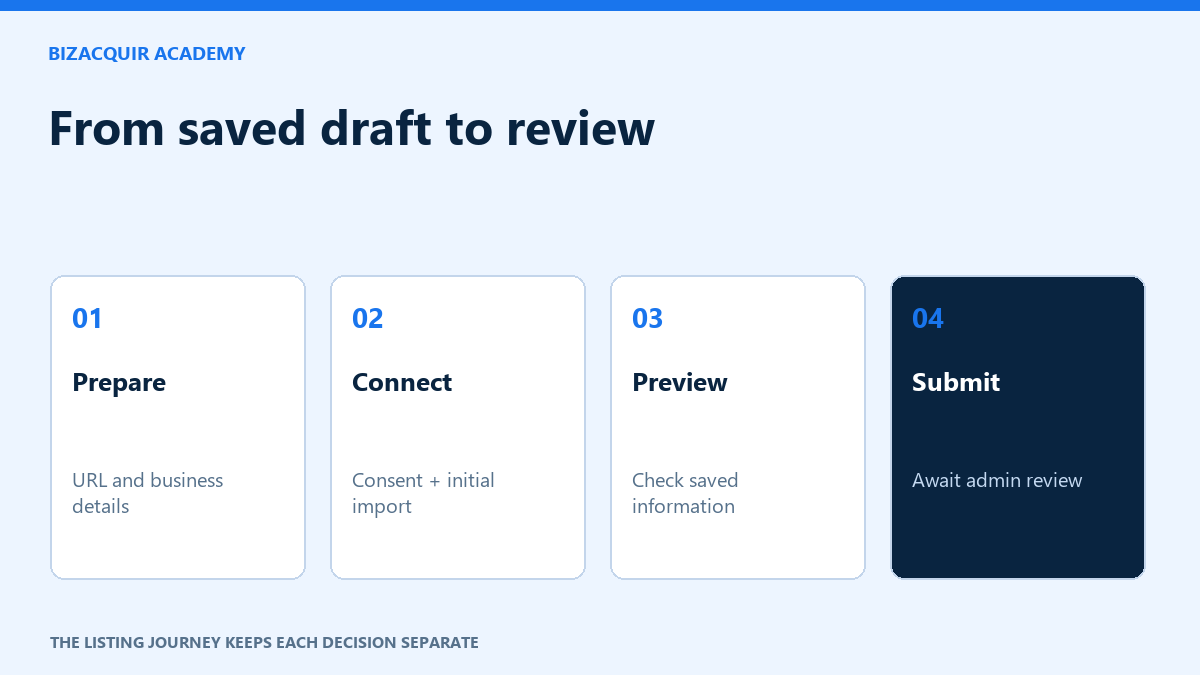
A BizAcquir listing moves through three different decisions: you save a private draft, submit it for review and, if approved and eligible, make it public. This guide follows the existing seller wizard and shows where to save, check your work and respond to review.
Before you start: prepare the business URL, platform, a short description, financial records with their periods, included assets and sale details. First submission requires at least one genuine business-data connection with a successful initial import. If every source says Setup pending, you can save and preview a draft, but cannot yet submit it.
1. Choose the business and its public URL
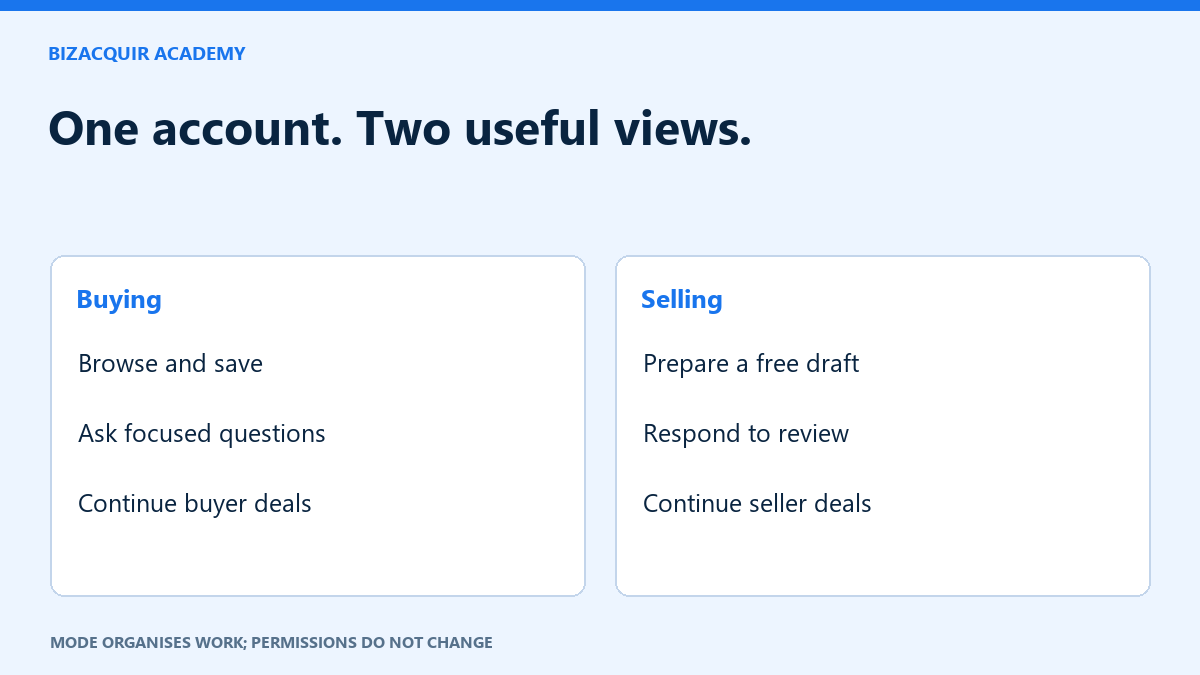
Sign in, select Selling and open Create a business listing. If you have already started, use My Business Listings → Edit listing instead. This keeps the saved work together.
In Step 1: Business URL, choose Whop, Shopify or SaaS. For Whop, enter the public page for the particular business, then use Continue. Do not enter only the Whop home page or another creator's page. The public URL lets the reviewer inspect the offer; it is not ownership verification. For Shopify, use the store's business URL in the URL field and its check control. The financial connection later asks for the permanent Shopify store domain separately.
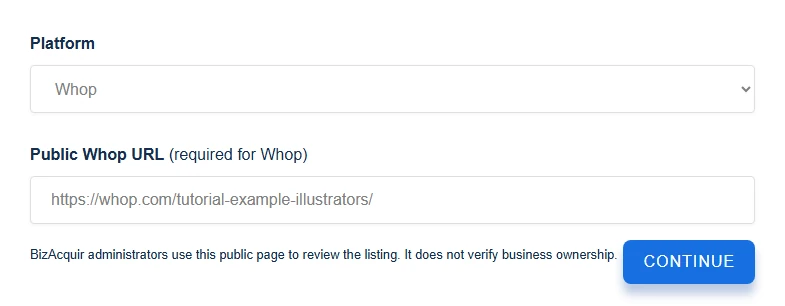
Step 1 in an isolated tutorial listing: Whop and its public business URL. The example is fictional and is not a business offered for sale.
If the URL is rejected, check the platform, complete address and whether it identifies the actual business. Do not create several drafts with slightly different spellings to get around the check. Keep the visible error for support if a correct address is still rejected.
2. Open the business-data step before financial information
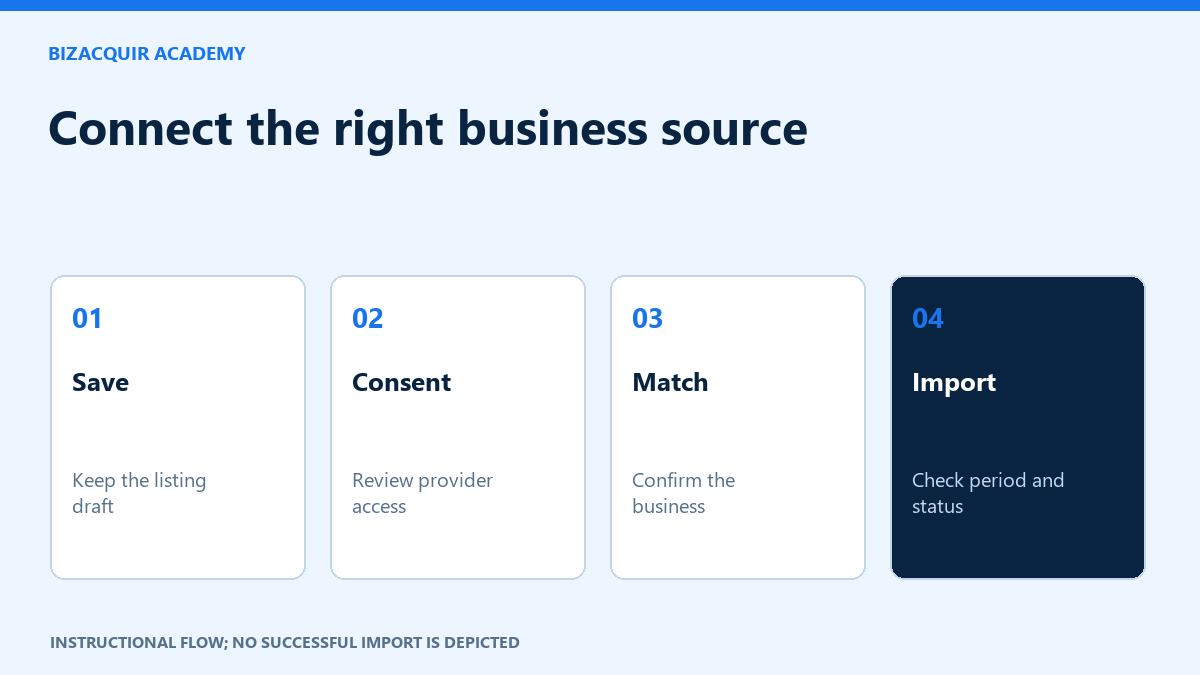
Step 2: Connect your business data shows Stripe, Whop and Shopify. The listing's platform does not restrict you to one source: a Whop business may also use Stripe, for example. Choose only an account that genuinely represents the listed business and that you are authorised to connect.
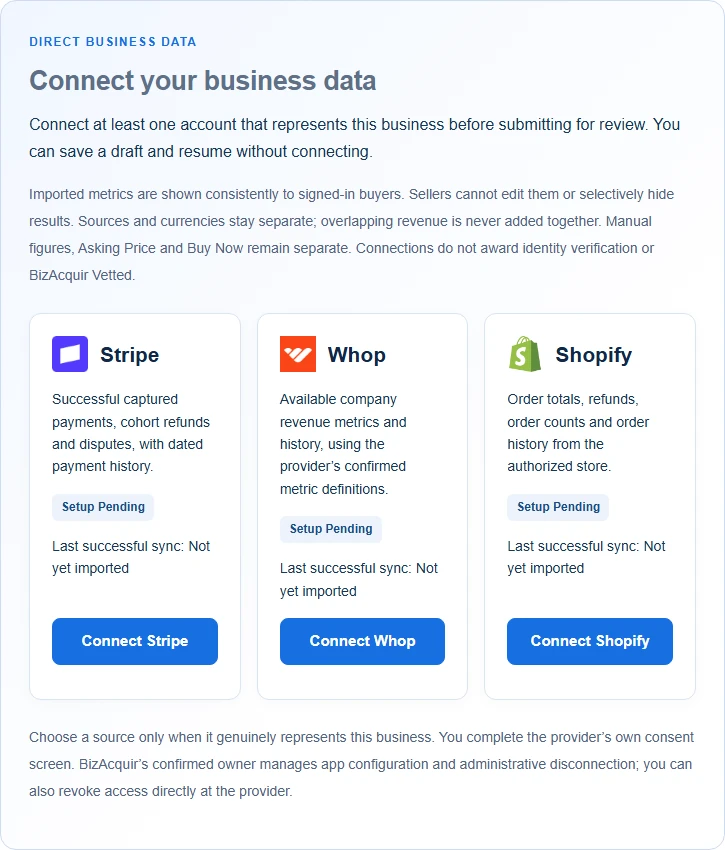
The actual connection step shows each provider, import status and last successful sync. These captured cards are Setup Pending; none demonstrates a successful connection.
Read the disclosure, save before leaving for provider consent and return to the same listing afterward. Clicking Connect or returning from the provider is not the same as a successful import. Use Continue to financial information to keep preparing the draft. The connection walkthrough explains the provider-specific inputs and recovery states.
3. Enter the business essentials and the right classification
In Step 3: Business details & financial information, enter the name, age and country. Keep the business name recognisable and the tagline specific. For a hypothetical learning membership, “Weekly project-brief reviews for illustrators” says more than “A unique online opportunity.” Use your own real description, not this example.
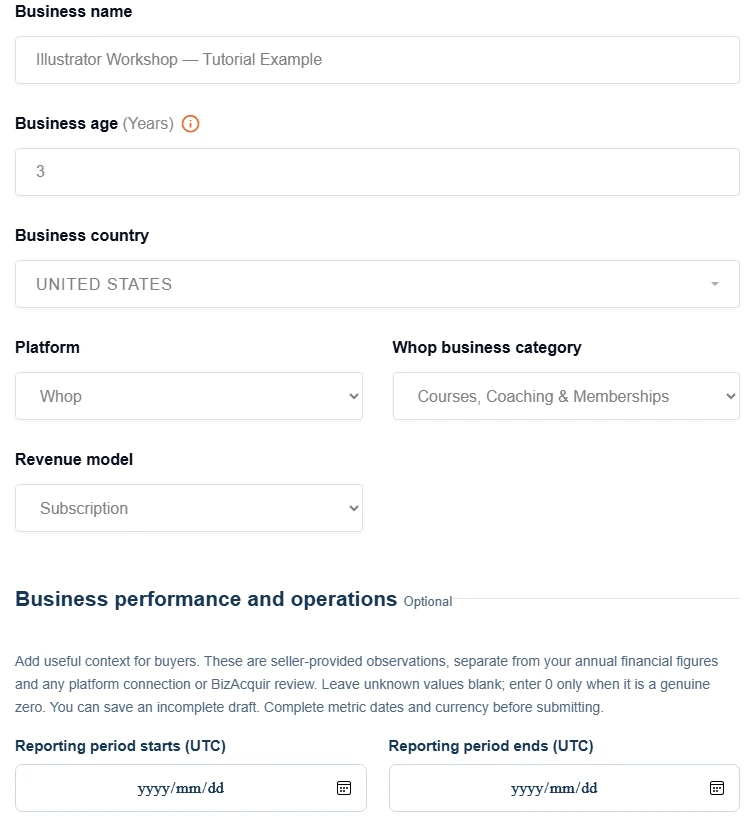
Business details in the real seller form, using a fictional tutorial record. Platform, business category and revenue model are separate selections.
| Field | What it should describe |
|---|---|
| Platform | Whop, Shopify or SaaS, based on the business itself. |
| Whop business category | The offer, such as a reselling group or educational membership. |
| Shopify operating model | How the store operates, such as inventory-based ecommerce or print-on-demand. |
| Shopify niche | The product market; it is separate from the operating model. |
| Revenue model | Subscription, one-time purchase, usage-based or mixed. |
Review the conditional fields after changing platforms. A community audience and active paying members are different counts. A store's order volume and inventory value answer different questions. Do not carry a value into a field merely because it is in the same position on the form.
4. Give financial figures a period and a meaning
The Financial Overview asks for revenue and expenses for the last twelve months and shows the resulting profit. These are seller-provided figures. Use records that support the same period and basis. An annual amount divided by twelve is an average monthly figure, not monthly recurring revenue.
The optional business-performance fields have their own reporting start, end and currency. Use them for the relevant period's observations, such as recurring subscription receipts, paying members or store orders. That currency selection does not change the marketplace sale currency or the annual figures. Leave unknown optional values blank; enter zero only when it is a real zero.
A hypothetical annual revenue of USD 24,000 and expenses of USD 12,000 gives USD 12,000 annual profit on that stated basis and USD 1,000 average monthly profit. It does not establish USD 2,000 MRR. If you cannot yet support required financial inputs, save the incomplete draft and gather the records before submission.
5. Explain the operation and included assets
Complete the overview, how the business makes money, operations or fulfilment, reason for selling and relevant handover information. Describe owner work honestly. Identify included assets and important exclusions rather than relying on “everything included.” Use the sale preparation checklist if you are unsure what a buyer will need.
Upload representative business images. Preview them at a readable size and avoid screenshots containing customer names, email addresses or private messages. Supporting financial documents belong in their designated private controls, not the public overview. Do not place passwords or access tokens in any listing field.
6. Save the draft, then confirm it reloads
Use Save draft while preparing the listing. Continue moves through the wizard; the final submission is a separate action. Wait for the saved confirmation before leaving. If the browser warns about unsaved work, remain on the page and save rather than assuming a mode switch saved it for you.

The real action row after a successful isolated draft save. The confirmation tells the seller where to resume the saved record.
- Open My Business Listings.
- Find the same business and choose Edit listing.
- Check that the latest name, classification, narrative and financial values are present.
- Continue using this record rather than starting a duplicate.
If a session expires, sign in and reopen the saved record. Text entered after the last successful save may need to be restored from your own working notes. A visible validation error means that you should correct the identified field and save again.
7. Keep sale prices distinct and inspect the private preview
In Sale details, use the selling method and applicable amount fields shown for your listing. Asking Price, minimum offer or bidding amounts, and Buy Now have distinct purposes. Do not copy revenue into a sale-price field or assume Buy Now should equal Asking Price. Read the labels and check the saved presentation.
Use Preview saved draft or Private preview. The preview shows saved information, so save the latest changes first. Inspect the title, category, description, images, financial labels and both configured prices. A private preview is not a public listing link.
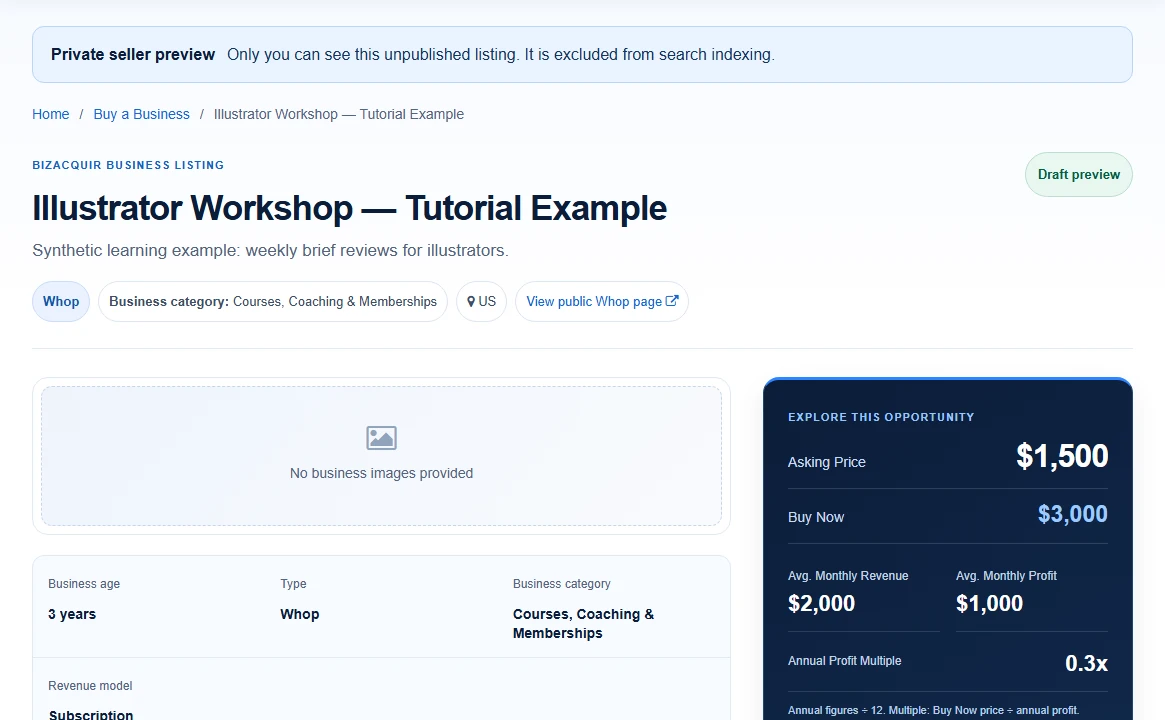
Actual private preview of the fictional tutorial business. This is saved example content, not a published marketplace listing.
8. Submit deliberately and read the result
Open Final step: Submit for review. Listing submission is free. Select the submission action only when the required fields and connection are complete. If validation stops the request, follow the message, correct the existing draft and try again after the underlying issue is resolved.
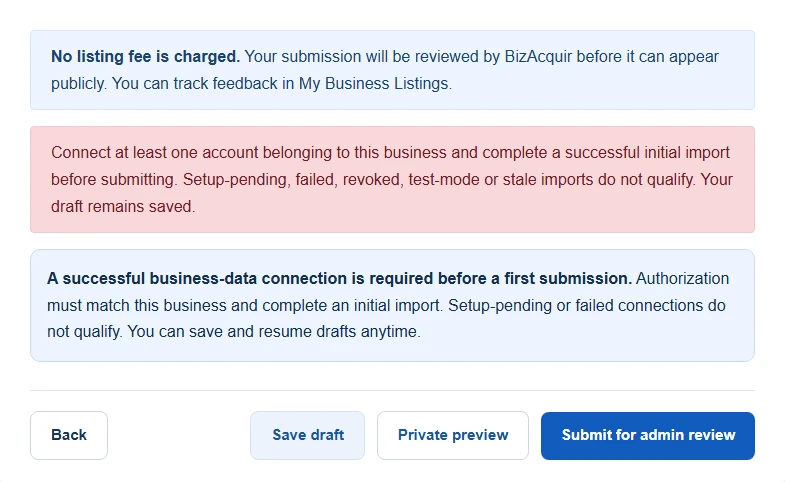
The final submission controls and a real validation response in an isolated tutorial account. A stopped submission remains a draft; this capture does not claim a completed provider import.
After a successful submission, check for Pending review in My Business Listings. This means the business is awaiting review, not that it is publicly available. The example below illustrates that status using a separately prepared isolated record; it is not evidence that the unconnected tutorial draft was accepted.
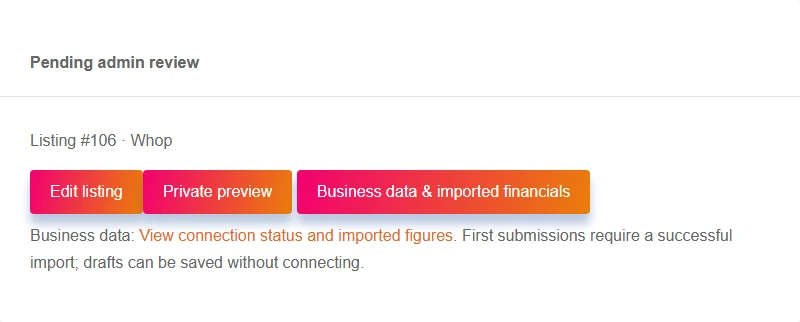
Actual seller rendering of a synthetic pending-review record, prepared separately to demonstrate the status and available actions.
9. Respond to feedback without losing your history
If changes are requested, read the feedback, edit the existing listing and resubmit when the correction is complete. If rejected, read the reason rather than posting a duplicate. Approval and BizAcquir Vetted remain separate reviews. Published listings renew automatically every 30 days at no extra listing cost; sold, withdrawn, suspended or disabled listings are not automatically revived.
| Problem | First thing to check |
|---|---|
| Continue does not advance. | The current step's required fields and visible validation. |
| Preview shows older text. | Save confirmation, then reload the saved preview. |
| Submission requires a connection. | Correct business binding and successful initial import, not just consent. |
| A submitted business is absent from browse. | Review status and feedback; pending review is private. |
| An approved business becomes unavailable. | Its current eligibility, moderation and renewal state. |
For unresolved errors, contact support with the listing reference and exact visible message. Exclude credentials, live authorisation links and private customer records from the report.
Listing an inactive business or SaaS
Choose the platform that describes the whole business, then select Active or Inactive separately from its draft or publication status. For an inactive business, give the inactivity date and identify the historical revenue period. Past revenue may qualify even when current revenue and profit are zero; never-revenue projects do not.
SaaS sellers should explain the tech stack, hosting costs, customer count and date, owner workload, included assets and transfer dependencies. Whop, Stripe or Shopify may support any of the three business types if the authorized account genuinely contains that business’s financial history. A successful initial import is still required before first submission. Save a draft if a required source is unavailable.
Your next step
Ready to prepare your sale? Sell your Whop business or get a free valuation. Create an account or sign in to view your private estimate.
- Connect Whop, Stripe or Shopify to Your BizAcquir Listing
- Create a BizAcquir Seller Account and Use the Selling Dashboard
- How to Prepare Your Whop Business for Sale
Sources and useful references
- BizAcquir: selling flow
- BizAcquir: free listings and renewal
- BizAcquir: review and transaction process
Resolve the specific step that prevents submission
A saved draft and a submitted listing are different states. If a required field is missing, return to that section and save the correction. If the financial import failed, open the connection’s recovery action; clicking Connect is not the same as a successful initial import. A denied authorization should leave the draft available.
Whop connections are available. For another provider, follow the availability shown in the current connection card and save your draft if it cannot yet connect. A business with genuine past revenue can qualify even if current revenue is zero; label the historical period and operating status honestly. For the full financial story, see report reconciliation.